Saturday, June 30, 2012

No entries found for list of values while running Purchase Order print report


One of the Inventory user was getting the below error "No list of values error" while running purchase order print report"


We have given the same responsibility to 3 users and 2 of them were able to run the report successfully but only one user was reporting the above error.

I checked responsibility and users every thing was looking fine but when i checked their EBS userids then came to know the user who is getting the error was not defined as an employee in Purchasing Super user ====> Setup===> Employee. Either to define employee in HR or in Purchasing and we are using purchasing to define the employees

Once i defined the employee and tagged the same employee name in User creation form like below screen , our issue was resolved :)


Tuesday, June 5, 2012

Oracle General Ledger Overview


The Oracle General Ledger is the central repository of accounting information. The main purpose of a general ledger system is to record financial activity of a company and to produce financial and management reports to help people inside and outside the organization make decisions.


Oracle General Ledger is a comprehensive financial management solution that enables you to:


·         Record and Review Accounting Information


·         Import data from subsidiary ledgers, or enter journals to record actual or budget transaction directly into oracle general ledger


·         Enter encumbrance journals to track encumbrances through the purchase process and to control spending against budgeted amounts.


·         Review account balances online or through reports.


·         Analyze, correct, and adjust accounting information.


·         Correct actual, budget, and encumbrance information.


·         Revalue and translate balances denominated in foreign currencies.


·         Consolidate balances from multiple ledgers.


·         Analyze Accounting Information


·         Integrate Oracle GL with Oracle Discoverer, or Web Applications Desktop Integrator to simply the budgeting and forecasting process.


·         Use FSG to build customized reports with reusable report objects.


·         Use Oracle Report Manager to submit and publish FSGs


      General Ledger Accounting Cycle


1- Open period
2- Create/reverse journal entries


3- Post


4- Review


5- Revalue


6- Translate


7- Consolidate


8- Review/correct balances


9- Run accounting reports


10- Close accounting period


Tuesday, May 29, 2012

APP-PO-14258: No rate has been defined for this date


We had the below error while receiving multi currency PO due to missing of required dates conversion rates in the system.

APP-PO-14258: No rate has been defined for this date


Cause:-

The issue is caused by missing conversions rates between foreign currency and functional currency for the date you are receiving the PO (transaction_date)
The rate type that you have entered uses pre-defined rates. No rate has been defined for the current rate type and rate date combination.
Solution:-

Define conversions rate between foreign currency and functional currency for the date you are receiving the Purchase Order.

There are 2 possibilities

A) Define conversion rate between SAR and EUR on 22-MAY-2012
1. Go into the responsibility General Ledger

2. Navigate to daily rates form

3. Define conversion rate between SAR and EUR on 22-MAY-2012 for rate type Corporate

OR

B) When entering receipts change the Rate Date in receipts form / currency tab to a date with an existing rate

1. Go into the responsibility Purchasing

2. Navigate to Receipts form. Search for PO 2907

3. In currency tab change date to a date for which a corporate rate exists between EUR and SAR currency
(for instance 02-APR-2012 00:00:00, ie rate of purchase order level)


For more detail please go through Purchasing User Guide 11i, Entering Receipt Header Information, Page No: 7-40:

FRM-40212: Invalid value for PO_NUM

We were getting below error while receiving planned PO :) in oracle inventory

FRM-40212: Invalid value for PO_NUM


Cause :-

Steps to reproduce
-----------------------
1. Navigate to Enter Receipts form
2. Enter PO number
4. Click Find
5. FRM-40212: Invalid value for PO_NUM

Since this was planned PO and user was trying to receive it in inventory without creating the release of this planned PO so while searching from receipt window he was getting " FRM-40212: Invalid value for PO_NUM"

A Planned PO can not be receipted


Solution:-

We did below steps to resolve this issue:-

RCVRCERC Receipts Cannot Be Queried FRM-40212 INVALID PO_NUM (Doc ID 304253.1)

==> PO Users Guide, Purchase Orders, Entering Releases Page 4 – 105:

" Use the Releases window to enter, edit, and approve releases against blanket purchase agreements or planned purchase orders.

1. Navigate to the Releases window by selecting Releases from the menu or selecting the New Release button in the Find Purchase Orders window.
2. Enter the PO number for the release you want to create. The list of values displays all blanket and planned purchase order numbers that have been approved, the document type, status, supplier,
buyer, and effectivity date range (global agreements are not available for releases). "

When you wish to receipt the approved release, you enter the release number in the Receiving Find form.
As per oracle standard business rule, Planned and blanket POs can not be received without making release, We can only receipt standard POs directly in inventory but not planned or blanket.


Monday, May 14, 2012

Procure to Pay cycle


In EBS Procure to Pay cycle covers the following stages:-

1. Creating Requisition
2. Creating Purchase Order
3. Creating Receipt
4. Creating Invoice in AP
5. Paying the Invoice
6. Transfer, Import and Post to GL


                                    Here is the diagrammatic representation:


This is a pure functional Stuff and helps to understand the navigation steps. The screenshots given below are taken from R12.1.1.

Stage 1: Choosing an Item

Choose an item to be procure in our example, Go to Purchasing Responsibility and follow the below navigation to check for the suitable item.


 The item picked for our example should be purchasable item as below. Click on tools and choose “Categories” to view the below screen


 Stage 2: Creation of Requisition

Follow the below Navigation to reach Requisition Form


Create a new Requisition for the item viewed in Stage 1


Click on distributions to View the charge Account.


Save and Submit for Approval


Stage 3 : Checking the Status of Requisition


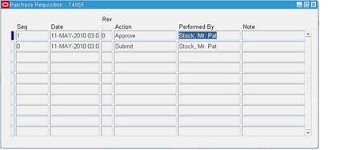
Now note down the Requisition number and open the “Requisition Summary Form” to view the status of it. For our Example, Requisition number is: 14855


Query the Needed Requisition Number and click Find.


 We have the only one approver in vision instance so to see the approval status, please follow the below navigation. 


Underlying Tables:

PO_REQUISITION_HEADERS_ALL
PO_REQUISITION_LINES_ALL
PO_REQ_DISTRIBUTIONS_ALL

Stage 4 : Creation of Purchase Order


There are 4 types of Purchase Orders:

1. Standard PO: A Standard PO is created for one–time purchase of various items

2. Planned PO: A Planned PO is a long–term agreement committing to buy items or services from a single source. You must specify tentative delivery schedules and all details for goods or services that you want to buy, including charge account, quantities, and estimated cost.

3. Blanket agreement: A Blanket PO is created when you know the detail of the goods or services you plan to buy from a specific supplier in a period, but you do not know the detail of your delivery schedules.

4. Contract agreement: Contract purchase agreements are created with your suppliers to agree
on specific terms and conditions without indicating the goods and services that you will be purchasing

For creating a Purchase order from already created PR, let us use the “Autocreate Documents” Form. Follow the below Navigation.


Query for the Requisition


Click on Automatic as shown in the below screen to create a Purchase Order


Click on “Create” button to create a Purchase order


 View the shipment screen to change the “Match Approval Level”


Click the “Receiving Controls” to make sure that the “Routing” is made as “Direct Routing”


Click Save and submit for Approval


Please note down the PO number so you could find it easily in next examples

Underlying Tables:

PO_HEADERS_ALL
PO_LINES_ALL
PO_DISTRIBUTIONS_ALL (REQ_HEADER_REFERENCE_NUM

in Distributions table is the Requisition number for this PO)
Stage 5: Creation of Receipts


Query with the Purchase order from below screen which was created in the above stage


 Check the check box near to the lines that are received and click save


Click the “Header Button” to view the Receipt Number


Receipt Tables are:
RCV_SHIPMENT_HEADERS
RCV_SHIPMENT_LINES (Lines Table has PO_HEADER_ID)

Stage 6: Checking the On Hand

Go to Inventory Responsibility and follow the below Navigation to verify the on hand quantity


Query by Receipt number and make sure that Organization is the same as we received


Below screen shot will show the difference in inventory that it has increased.


Stage 7: Check the Material Transactions

Follow the below Navigation to open “Material Transactions” Form

Query by item and by date from below screen and click find


Below screen shows the source and transaction Type


Below screen shows the Serial Numbers of the items received


Stage 8: Creation of Invoice
 
Navigate to Purchasing Responsibility and view a Requests 
Submit the below requests by providing the above created Receipt number as Parameter to create an invoice.


Click View and see the statu of submitted request


Stage 9: Checking the Invoice

Change to Payables Responsibility and open the query invoices Form. Query by Purchase order and click "Find" as below.


Click “Actions” Button then tick the “Validate Check Box” and press “Ok” to validate the invoice


Below screenshot will give the validated status of the invoice


Invoice Tables:


AP_INVOICES_ALL
AP_INVOICE_DISTRIBUTIONS_ALL


Stage 10: Creation of Accounting and Payment

Once invoice got approved then we can “Create Accounting” and “Create Payments” via “Action” Button in the “Invoice Form” as we validated the invoice in above steps.

Accounting Entries Tables:
AP_ACCOUNTING_EVENTS_ALL
AP_AE_HEADERS_ALL
AP_AE_LINES_ALL


Payment Tables:
AP_INVOICE_PAYMENTS_ALL
AP_PAYMENT_SCHEDULES_ALL
AP_CHECKS_ALL
AP_CHECK_FORMATS
AP_BANK_ACCOUNTS_ALL
AP_BANK_BRANCHES
AP_TERMS


Stage 11: Transfer to GL, Import and Post


Run the concurrent program “Payables Transfer to General Ledger” with the required parameters, import and post accordingly.




Sunday, May 13, 2012

You must allow access to at least one attribute group while accesing EBS purchasing forms


Fresh Installation of R12 EBS Instance normally gives the below error message, We had the same issue in our freshly installed instanace and we solved it by licensing the Products from the below navigation.


Error = "You must allow access to at least one attribute group"


Login to EBS ==> Oracle Application Manager==>License Manager and License the Instance as per below screen shots.